


Casino Winner Keyboard Shortcuts Uncovered by Australian Power User

12/10/2026
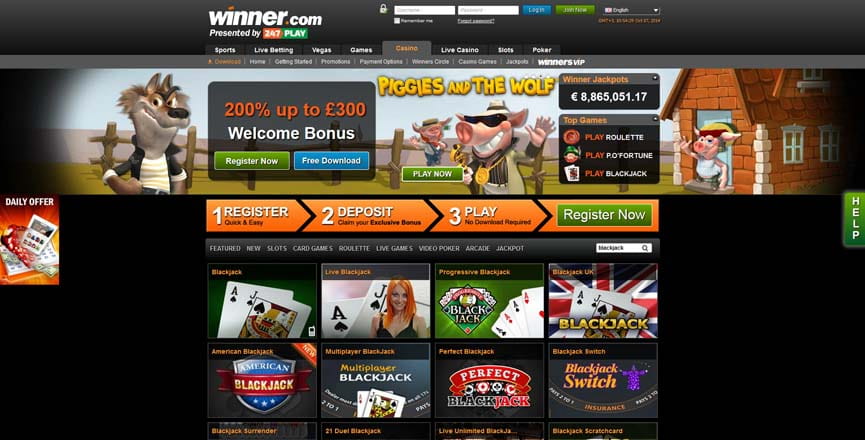
Effectiveness matters in online gaming. For Australia-based players at Winner Casino, getting around the platform rapidly can turn a decent session into a great one. A committed Aussie player has provided a set of keyboard shortcuts that streamline navigation, speed up play, and access features you might otherwise miss. These techniques can offer you a true advantage at the digital tables and slots.
Why Keyboard Shortcuts Count for the Modern Gamer
Most people uses a mouse, but a keystroke is often quicker and more exact. Keyboard shortcuts minimize physical effort, reduce accidental clicks, and allow you respond quicker in live dealer games. For Australian players watching their bankroll or juggling multiple tables at once, these go beyond neat tricks. They’re essential for a more structured and immersive experience.
The Origin: An Aussie Power User’s Experience
Our details originates from ‘SydneySpeedster’, a seasoned punter based in Melbourne. He grew weary of all the clicking during marathon roulette sessions. After a lot of testing and note-taking across Winner Casino’s platform, he charted a series of key commands. He shared his discoveries with our community, showing us the clever design elements most casual users never see.
Key Navigation Commands for Winner Casino
Reaching your game fast is half the struggle. These commands let you browse the Winner Casino site like a veteran, enabling you to find promotions or view your history without the fuss.
Global Site Navigation
These commands function from almost anywhere on the Winner Casino site. Hit ‘H’ to navigate to the Help or Support section. This is useful for a quick query. The ‘L’ key usually sends you back to the main area, and ‘P’ opens your profile and account preferences.
In-Lobby Movement
Inside the game area, use the Tab key to advance through categories like Slots, Live Casino, and Table Games. Shift+Tab moves you backwards. Then, use your arrow keys to choose a specific game icon. Press Enter to launch it right now.
Speed Boosters: Slots and Table Games
This is where shortcuts pay off, converting slow, repeated clicks into one press. Using them can let you fit more spins or hands into your playing time comfortably.
- Spacebar (Slots): This is your go-to spin button. Pressing spacebar starts the reels on most slot games. It saves time compared to clicking the spin button manually.
- Quick Bet Adjustments: In numerous table games and slots, the ‘+’ and ‘-‘ keys on your keyboard will raise or lower your bet per line or per hand.
- Mute Toggle: The ‘M’ key typically acts as a global mute and unmute for game sounds and music. It comes in handy when you need to focus or your environment is loud.
Mastering the Live Casino with Keyboard Shortcuts
The Live Casino is fast-paced casino-winner.org. Hotkeys here prevent you from struggling with your mouse as the live dealer maintains the action going. They give you a more immediate, tactile feel for the game.
Roulette & Blackjack Quick Actions
In Live Roulette, number keys can sometimes map to quick-bet chips. For example, ‘1’ might place a chip on red, ‘2’ on black. In Blackjack, ‘D’ often increases your bet, ‘S’ stands, ‘H’ hits, and ‘P’ splits pairs. It’s advisable to check the game’s own help menu first to confirm these mappings.
Chat and Dealer Interaction
Press ‘T’ to access the chat box. You can enter a message to the dealer or other players without clicking first. Hitting ‘Esc’ will dismiss any open chat or menu panel, keeping your view of the live stream clear.
Pro Power User Strategies
For the local player who desires maximum efficiency, these next steps involve mixing shortcuts and utilizing your browser smartly. The aim is to make everything flow together, from the game to your own tools.
- Utilize Alt+Tab (Windows) or Command+Tab (Mac) to flip quickly between Winner Casino and another window, like a betting calculator or a note-taking app.
- Pair the in-game mute (‘M’) with your media player shortcuts (like your keyboard’s play/pause key) to manage all your audio without touching the mouse.
- Utilize browser zoom (Ctrl/Cmd and the mouse wheel) along with the game’s own navigation to adjust your view. This assists with clarity on busy table layouts.
Customising Your Gameplay for Australian Play
Connection settings and gaming habits in Australia can be unique. We advise using quick keys to ease the strain on your link and smooth play during busy times. Quickly silencing audio and switching off high-quality graphics rendering (often via ‘O’ for options) can aid responsiveness on mobile broadband.
Security and Controlled Gaming Shortcuts
Winner Casino supports responsible play, and shortcuts can support that. Find the exact key to your deposit caps (usually located under ‘P’ for profile). Setting a session timer using your computer’s own alarm, which you can activate without closing the game, is a smart approach to manage your time and budget.
- Instant Balance Check: A single press of the ‘B’ key often displays your current account balance without opening the full cashier. This allows you remain aware of your funds.
- Quick Logout: Knowing a fast logout command (sometimes Ctrl+Q) allows you terminate your session instantly if you have to. It offers a layer of personal control.
Integrating Shortcuts into Your Daily Habits
Adapting to these shortcuts needs a bit of time. Choose two or three that address your most annoying problems—maybe quick spin and mute. Integrate them into your routine gradually over several sessions. Your fingers will pick up the patterns before long. This enables your mind concentrate on strategy and fun, making your time at Winner Casino more rewarding.
FAQ
Do these shortcuts operate on the Winner Casino mobile app?
These keyboard shortcuts are mainly for the desktop browser version. The Winner Casino mobile app is built for touch. If you attach a Bluetooth keyboard to a tablet, some general browser keys might work, but the specific in-game shortcuts probably won’t operate.
What should I do if a shortcut doesn’t work in my game?
First, make sure you’ve clicked on the game screen itself. The game needs to be the active window. Some shortcuts differ between games and software providers. Consult the ‘Help’ or ‘Settings’ menu inside the game you’re playing for its official control list.
Can using keyboard shortcuts get me banned for “bot-like” activity?
No. These are legitimate, allowed input methods built into the game’s interface, just like using a mouse. Winner Casino’s security can differentiate the difference between a person pressing keys and automated software. Playing more efficiently with shortcuts is completely within the rules. It’s a sign of an experienced player.
Are there shortcuts for claiming bonuses or entering promo codes?
General site navigation shortcuts are the way to go. Using ‘P’ for Profile often leads you to a bonus management area. Once you’re on the right cashier or promotion page, the Tab key can navigate you to the code input field. From there, you can type and submit quickly.
How do practice these shortcuts without risking real money?
The best method is to use Winner Casino’s demo or free play modes. Load a slot or table game in demo mode and test the key commands with no money on the line. This builds the muscle memory you need to play confidently and quickly when you switch to real AUD.


Bài Viết Liên Quan
- Pagamentos de depósitos no spinmacho casino para jogar slots online
- Bonusbedingungen und Regeln bei slotsdj für die Nutzung der Spiele
- Jogos de casino no riverspin login portugal para apostas e slots
- Bonusy oraz dodatkowe funkcje w Play Jonny dla każdego użytkownika
- Bonustermijnen bij choco spin casino voor de diverse online slots
- Registratie en diverse casino games bij Boom zino voor nieuwe spelers
- Nieuwe registratie en diverse casino spellen bij Amonbet voor gebruikers
- Registration process for Spinmama and available casino bonuses
- Juegos de slots con royals tiger casino para partidas en el casino online